Showing posts with label audio. Show all posts

Sunday, August 30, 2009

Live Messenger And The Default Communications Device

Discovered something else totally cool about Windows 7 (and probably Vista though i havnt tried it on there).  For audio playback devices there are two default settings:

  • Set as default device - Audio from all programs will be played through this audio device unless otherwise configured
  • Set as default communications device - All calls and video call audio will be played through this audio device unless otherwise directed

Turns out that messenger falls into the second category.  If you make a video call or voice call through messenger it will direct to the default communications device not the default playback device.  What this means, if you are using bluetooth headphones or similar, is that the sound will still go to the speakers unless you configure it to use your headphones.  Doing this is very easy:

  1. Shut down messenger if it is running
  2. Connect your bluetooth headphones or plug in your wired headphones
  3. Right-click the speaker icon in the system tray and select Playback devices to display the following dialog:image
  4. You will see the top item is my bluetooth headphones – they are currently set as the default playback device automatically when connected by the BlueSoleil software i am using
  5. Right-click the bluetooth/wired headphones and select Set as default communication device.  This will cause all communication audio (ie - Live Messenger calls) to redirect through the headphones when they are connected
  6. Click OK to save the changes
  7. Restart messenger and make a call.  The audio will now go through your headphones

Note that it is necessary to restart Messenger for these changes to take effect.  If Messenger is running and you make the change it will continue to use the speakers until you do so.

Friday, August 28, 2009

Using BlueSoleil With Macbook Pro Unibody

In my last post i showed how to use the Toshiba BT stack with the 15" Macbook Pro Unibody (and probably any other BT device you would like). I wasnt too happy with the outcome though - i find the Toshiba BT stack to be quite clunky in the way it integrates with my BT hardware and has a very dated feel to the software. On the plus side it was nice and configurable which i do like. The BIGGER downside though, is that there seems to be no option to license the software on non-Toshiba hardware, rendering it useless after 30 days, unless you crack it. As a software developer myself i try to avoid the latter option and support the industry :)

With that in mind i set my sights back on the other two options - Broadcom and BlueSoleil. My first choice was Broadcom, only because the MBP Unibody uses a Broadcom manufactured module. However Broadcom plainly refuses to install itself on any device that has not paid them royalties for the BT stack, which Apple obviously has little incentive to do at this time. So i turned my attention back to BlueSoleil. This was always my first choice to begin with, since it is intended as an all-purpose stack that you CAN buy a license for if you like it. Well i was successful this time around and i can tell you, the effort was definitely worth it.

Installing BlueSoleil On An Unsupported Device
  1. Download the latest BlueSoleil release from here (version 6.4.275.0 was used for this writeup)
  2. Extract the contents of the zip file and browse to the install directory
  3. Open setup.ini for editing using notepad or similar and replace the contents with the following (simplified for ease of reading). Note that while some of these changes may not strictly be necessary, they streamline some parts of the install process and avoid problems later:

    [bsconfig]
    BluetoothPlaceSite=1
    ShutDownBluetoothHardwarePower=1
    DefaultLocalDeviceClass=1

    [Install]
    CmdLine=""%SetupExeLocation%%PROCESSOR_ARCHITECTURE%\setup.exe"
    [SPDPhoneNumber]
    NumberCount=1
    SPNumber1=#777

  4. Save the file and close it
  5. Run setup.exe as administrator (this is probably not necessary, but its what i did to achieve a successful installation so vary and post your results below)
  6. The installation should succeed with no errors. You should notice the default MS BT stack icon in the system tray has disappeared. Do NOT restart your system when prompted - we want to make a few changes first
  7. Open file explorer and browse to where you installed the BlueSoleil BT stack (default is C:\Program Files\IVT Corporation\BlueSoleil)
  8. Open the bttl.ini file for editing in notepad or similar. Search for the text 8203. The line that is found should be in a section titled [HW356]. If you are using a different version of the drivers then it is unimportant if this title is different. What is important is that you take note of the title. Change the text 8203 to 8213 - what we are doing here is changing the hardware ID specified in this section to match the hardware ID of the BT module. If your hardware ID is slightly different, then simply change the hardware ID here to match yours (and in all subsequent steps). See my previous post on how to locate your hardware ID if you are unsure
  9. At the top of the file, in the [DEFAULT] section, change the setting NUM=363 (number may differ depending on your version of the drivers) to NUM=356
  10. Save the file and close it. Depending on your security settings in Windows 7, you may not be able to save the file directly. Instead - you may have to save the file to your desktop or some other location, close the file and then manually move it back into the directory
  11. Go to the driver\usb subdirectory and open the file btcusb.inf for editing.
  12. Search for the text 8203 and replace all instances (there should be two) with 8213 (again substitute for your hardware ID if it is different from mine)
  13. Save the file (again you may need to indirectly save it using the method explained above) and close it
  14. Restart your computer and once it has restarted, you should see the new BlueSoleil icon in the taskbar. At this point BlueSoleil is installed successfully, but the BT module is not yet setup. We need to do that manually through the device manager
  15. Go to the start menu, type "device manager" and press enter to open the device manager
  16. Browse to the BT module under Bluetooth - it will likely be called Generic Bluetooth Device (if not you may have some other BT software installed that should be removed before any of these steps are performed, but you can probably just install it at this point and proceed)
  17. Right-click the BT device and select Update Driver Software
  18. Select the bottom option Browse my computer for driver software
  19. Select Let me pick from a list of device drivers on my computer and browse to the location of the USB BT driver modified above (default is C:\Program Files\IVT Corporation\BlueSoleil\driver\usb) and click Next
  20. Select the only option in the list, which will be Apple Built-in Bluetooth
  21. A warning will pop up saying the driver is unsigned - click Install this driver anyway
  22. The device should now change its description in Device Manager to Apple Built-in Bluetooth and is successfully installed!
  23. Right-click the BlueSoleil icon in the taskbar and select Turn on bluetooth. You should now successfully be able to pair your bluetooth devices (eg headphones) with your MBP Unibody!

My Experience With BlueSoleil

  • A2DP connectivity is ABSOLUTELY seamless - I made my headphones discoverable - BAM they were connected and appeared as connected on the computer. No redundant password prompt or connection dialog. Music instantly started playing through them. Turn them off and sound changes back to the speakers. Turn them back on they start playing again. Absolutely seamless - i dont even have to stop/start the program using the audio device at the time, which i had to do with the Toshiba drivers
  • Beautiful icon set - the icons used are all vector graphics and fit very nicely with the slick look of Windows 7
  • Minimal set of services - only 3 which is not as good as the MS stack, but way better than the Toshiba drivers which had around half a dozen! They seem to be well designed, making efficient use of resources too which is important - BT should be very transparent to the system in my opinion

As requested, here are the modified INF files (generated from version 6.4.286.0 on 2/12/2009)

Wednesday, August 26, 2009

Bluetooth Stereo Audio (A2DP) Fixed on Macbook Pro Unibody

Well after 3 solid days of searching, downloading and modifying the various Bluetooth (BT) stacks out there, ive finally been successful in getting my Logitech Freepulse Wireless Headphones to work with my MBP 15" Unibody. Its worth it since i spend 1.5 hours each day travelling on the train, so this really comes in handy. Let me walk you through my experiences (so you can see what didnt work) and finally the resolution that did work.

What I have tried
The following list i have tried over the past few days without success:
  • Uninstalled Windows 7 64-bit and reinstalled 32-bit. See my previous post on the main reasons i did this, but it was also to see if the 32-bit drivers were any different from the 64-bit counterparts - they weren't and the same problems were still evident. My next step will be to revert to 64-bit again to reclaim my memory
  • Discovered that the MS BT stack is extensible, though documentation is so far sketchy at best. Contemplate writing an A2DP profile extension that would provide all Windows users with full A2DP support. I havnt completely disregarded this yet but it looks like it will be significant work to fully support all types of encoding, etc. This idea has been shelved pending my future experiences with the BT stack i now have working
  • Tried to use the seemingly excellent BlueSoleil BT stack 6.4.275. This doesnt support my current adapter out of the box, but using similar techniques to what i describe here, i was able to get it to install. Mixed experiences with this one - the first time after installing i managed to get the BT service to start but could not connect. Subsequently i was never able to get the service to start again - it would always freeze - and i mean FREEZE as in the computer was responsive but hung whenever i tried to shut it down or uninstall BlueSoleil. This did not give me a warm, fuzzy feeling at all. They seem to update frequently though and it does officially support Windows 7 now as well as several, older Apple BT modules so i will definitely try it again once they officially support my hardware
  • Tried to use the Broadcomm BT stack 6.3.0.200. Again, my hardware is not officially supported and this was made trickier by the fact that the installer seems to only be a stub that then downloads the components it detects as necessary. I didnt play around with this one too much and i will be revisiting it now that i have had some success
  • Tried to use the Broadcomm BT stack 6.0.1.5300. I found the full package of this version so i decided to give it a go. After tweaking the INF files i had no success in getting the installer to identify my BT module. This is a problem because if the Broadcomm package can not detect your module, it refuses to install at all, preventing further tweaking. I will likely focus on a later release of Broadcomm anyway
What worked
I ended up having success with the Toshiba BT stack 6.40.02. You can download the latest 32-bit and 64-bit versions from here. Again, the current version of the driver does not support my hardware out of the box, so use the following steps to get it to install:
  1. Extract the contents of the downloaded zip, which will result in another self-extracting executable called v64002T_20090623_x32.exe

  2. Extract the contents of this executable using a suitable program (my persontal favourite is Winrar, but 7-zip should also do it)

  3. Run the silent_install.bat batch file - this will perform a silent installation of the BT stack, so you wont see much on screen except probably a UAC confirmation (if you have it turned on) to confirm the operation. Doing this is better than running the installer normally, since if you do that, it tries to install the BT module as part of the installation. However that will fail because the INF file does not support the current hardware yet

  4. After the silent install has completed, browse to C:\Program File\Toshiba\Bluetooth Toshiba Stack\Drivers\tosrfusb and open the tosrfusb.inf file for editing

  5. Search for [Standard] to go directly to this section. You will see a bunch of entries with the following format:

    %DisplayName%=Section, HardwareID

    We need to add another entry for the BT module in our MBP. Add a new line at the top of the list that looks like this:

    %Apple.DeviceDesc%=TosrfUsb_Device, USB\VID_05AC&PID_8213

    If your Hardware ID for your BT module is different, simply subsititute it for the above. The process to find your hardware ID is outlined below.

  6. You now need to add a description of your BT module to the INF file. Go right to the bottom of the file and you will see a bunch of declarations with the following format:

    Key = "Description"

    We need to add another entry for the BT module in our MBP. Add a new line at the bottom of the list that looks like this:

    Apple.DeviceDesc = "Apple Built-in Bluetooth Module"

    You can actually make the text inside the quotes whatever you want - this is what will appear in the Device Manager for the device

  7. Save the INF file - under Windows 7, depending on your security settings you may be unable to save the file directly since this is a protected location. The easiest way around this is to either edit the file as administrator or save the file to the desktop, then move it back to the folder overwriting the old file

  8. Press the Windows key to open the start menu and type 'Bluetooth Settings' then press enter to start the Toshiba BT manager. This will trigger the Toshiba BT manager to go and discover the BT module in your MBP. With the settings added to the INF above, it should install the necessary drivers, set up the required service as well as shut down the standard MS stack for you. You may be required to restart your computer after this step.

  9. At this point the Toshiba BT stack is installed and ready to use. You can now right click the new BT icon in the system tray and pair with your BT devices
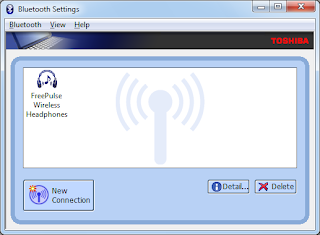

  10. I have discovered a small glitch with my Logitech Freepulse Wireless Headphones when using the Toshiba BT stack. Everytime i pair the headphones it prompts me for the password (0000). If i connect this way (ie headphones initiated the connection) i find the sound does not work at all! However if i initiate the connection from the computer, it pairs without asking for the password and the sound works flawlessly.

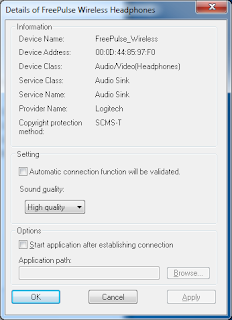
  11. By default stereo headphones are set to use low quality with the Toshiba BT stack. To change this, right click the heaphones icon in the Toshiba BT manager and select Detail. Change the Sound Quality setting to High Quality and click OK. Note you will have to reconnect your headphones for this setting to take effect if they are already connected
The only downside to using the Toshiba BT stack is that because this is a non Toshiba piece of hardware, the BT stack only runs for 30 days. I dont believe there is an option to purchase this stack either, unlike the BlueSoleil option. I will leave that limitation as an exercise for you to overcome. I will just say that there are options out there to overcome it.

Works On My Machine!
Please note that this should work on every single MBP 15" Unibody, since they are all the same hardware! However there is always a chance Apple will start using a different BT module in the near future. My machine identifier is MacbookPro5,4 (which can be found using the System Information tool that comes with Windows under the System Model field). The details of my BT module are as follows:

Manufacturer: Broadcom
Firmware Version: 162 (251)
Hardware ID: USB\VID_05AC&PID_8213
HCI Version: 2.1 ($4)
HCI Revision: 251 ($FB)
LMP Version: 2.1 ($4)
LMP Revision: 8610 ($21A2)
Composite Class of Device: 3670284 ($38010C)
Device Class (Major): 1 ($1)
Device Class (Minor): 3 ($3)
Service Class: 448 ($1C0)

Finding Your BT Module Hardware ID
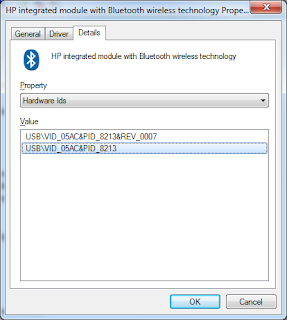
The hardware ID is what is used inside the INF file to uniquely identify a particular configuration of hardware. To find your hardware ID, use the following steps. If it is not the same as mine above then substitute it at the appropriate points in the above steps and it should work. Please post your experiences in the comments!
  1. Go to the start menu and type "Device Manager" then hit enter to open the device manager.

  2. Browse to the Bluetooth section and expand it

  3. Double-click the Generic bluetooth device to open the properties (the name may be different if you have already installed a BT stack - eg Apple Built-in Bluetooth Module if you followed the above steps already)

  4. Go to the details tab

  5. Change the Property list to Hardware Ids

  6. The ID you are after will have the format USB\VID_xxxx&PID_yyyy
Troubleshooting
If it doesnt work, i would suggest looking at the following:
  • Uninstall any other BT stacks you have installed - this includes Widcomm, Broadcom, Toshiba and BlueSoleil. The standard MS stack will always be there but all the other packages seem to now handle it fine and perform the necessary steps to disable it as required
  • Try preventing the MS stack from detecting and installing its drivers by removing the bth.inf and bth.pnf files from C:\Windows\inf (back them up of course). This really shouldnt be necessary though and i have never had to do it with Windows 7
  • Try stopping the Bluetooth Discovery Service
  • Usual stuff like restarting, checking your device ID, etc
  • Pray to the BT gods ...
Final Words
I really, really wish MS would just include the A2DP profile in their built-in MS stack. To be honest i much prefer the built in stack over all the other implementations - it is much simpler, has better icons, integrates better into the various features of Windows 7 and seems to have a lot less services and processes needing to be run. It would be a simple DLL addition to provide the support and is something that OSX now provides out of the box since 10.5. I really cant believe in this day and age they are going to release Windows 7 without it, but this seems to be a reality that we have to work around.

Tuesday, August 18, 2009

Windows 7 on Macbook Pro Unibody - Sound Driver Issue Resolved

Turns out that Apple did some strange things in the driver INF file that caused the speakers to be dampened and the headphones to be amplified, as well as forgetting to enable 1/3 speakers.

To resolve this issue, download the fixed drivers here

Thats one issue ticked off the list.

Thursday, April 16, 2009

Windows Media Player 11 Library - Apply Media Information Changes

I use WMP 11 because it does everything i want and comes with Windows - nuff said. If you use another player fair enough but dont post comments here about how other players are better, im well aware of them. Anyway i recently got myself a new 8GB SDHC card to replace my dead 4GB SD card to use in my Dopod D810. After using it for a bunch of MP3s, it became obvious very quickly that i needed to cleanup my music collection and update the meta data so they would be sorted correctly in the mobile media player. This is some useful information i found along the way and is a response to, what seems to be, a very misunderstood part of WMP and rightfully so.

Organising the Collection
WMP is actually really cool at doing this. The online metadata is fairly up-to-date and enabled me to organise my collection fairly quickly with the correct artist, album and song title information. The process i used was:

  1. Display my collection using the Additional Views -> Folder view, since although the MP3 tag may not have reflected it, my collection was logically organised into folders representing albums
  2. Browse to a folder (album) that i noticed wasnt being sorted correctly in the mobile media player
  3. Highlight all the songs, right click and select 'Find Album Info'. Select 'all songs are from the same album' if prompted. This usually yielded a fairly good search result where the correct album was in the top 3 hits. It seems to yield a much better search result than right clicking the blank album cover and selecting 'Find album info' since you are given the option to select that all songs are from the same album
  4. Manually match any unmatched songs. It appears that WMP matches based on song length more than any other piece of information. Title also appears to have some influence
  5. Click finish. Sometimes you then have to right click the blank album cover and select 'Update album info' and give it a few seconds to download the album art

Of course if you ripped the MP3s directly from a CD in WMP then usually this step is not necessary since it will be done using the CD information at the ripping stage.

Apply Media Information Changes
Doing that above gave me a very accurate set of songs. To my surprise though, the changes are not automatically applied to the files on disk, leaving the WMP database of information out of sync with the underlying files. I guess this is done for performance reasons ... although personally i think the small delay required to update ~10 files would hardly be noticed amongst the above process.

Anyway, you apply the changes to the underlying files using the Library -> Apply Media Information Changes option. This seems to be the step that gives most people a lot of hassle and i also encountered most of the problems which i was able to solve. This usually involves the progress bar not moving at all, or appearing to move but jumping back to 0 percent constantly. The following fixed the issue for me:

  1. In the options, ensure the Library -> Retrieve additional information from the Internet option is turned OFF completely (neither of the suboptions). This will stop the apply process from retrieving any meta data from the internet which can be an extremely slow operation for large music collections. In theory, if you followed the above steps each album should have the correct meta data anyway and it is unlikely to EVER change.
  2. The Player -> Connect to the internet setting, which supposedly overrides all other settings appears to have no effect when applying media changes. In other words, if you turn this OFF, it is not the same as turning off the option i mentioned in step 1. So make sure you perform step 1
  3. WMP does not apply media changes to files that are read-only. I would have expected WMP to simply make the change regardless, but this is not the case. This does mean you can use this to your advantage however, and make files readonly that you DONT want WMP to sync with its internal database. To make all music files writable, go to the root folder of your music collection and right click the folder and select properties. Then untick the 'readonly' attribute and click OK -> Apply to all subfolders.
After making these changes, the AMI option in WMP worked a treat and all files were updated with the correct information. It can still be reasonably slow for large collections (minutes) but you should clearly see it progressing at a reasonable pace now.

Hope this helps someone - working with software all day every day i was easily able to work out why WMP wasnt doing what it was supposed to. However i can see why the vast majority of people get frustrated with this function and end up turning to another player just because they cant update their media information. Its a shame because i think the library management in WMP is quite good - if they provided decent quality album art it would be even better!